C++
C++ | VScode에서 c++ 디버거 설정, VScode c++ MSVC debuger 설정
토오오끼
2025. 9. 29. 18:15
728x90
반응형
vscode에서 f5 버튼을 눌러서 c++을 디버깅 하려면 몇가지 설정을 해 줘야 한다.

왼쪽 상단의 Run에서 Add Configuration을 클릭 해 c++(windows)를 선택하면 launch.json 파일이 생성될텐데 해당 파일에 아래 내용을 추가 해 주면 된다.
기존에 python 디버깅을 하면서 launch.json 파일이 이미 있는 경우 configurations에 아래 내용을 추가 해 주면 된다.
{
    // Use IntelliSense to learn about possible attributes.
    // Hover to view descriptions of existing attributes.
    // For more information, visit: https://go.microsoft.com/fwlink/?linkid=830387
    "version": "0.2.0",
    "configurations": [
		    {
            "name": "Python Debugger: Current File",
            "type": "debugpy",
            "request": "launch",
            "program": "${file}",
            "console": "integratedTerminal",
            "args": "${command:pickArgs}"
        },
        {
            "name": "Cpp Debugger",
            "type": "cppvsdbg",
            "request": "launch",
            "program": "${command:cmake.launchTargetPath}",   // ← 선택된 CMake 타깃 exe 자동
            "cwd": "${workspaceFolder}",
            "args": [],
            "stopAtEntry": false,
            "environment": [],
            "console": "integratedTerminal",
            "preLaunchTask": "CMake: build"                   // CMake Tools 기본 빌드 태스크
        }
    ]
}
디버깅 시 config를 설정한 이름으로 선택 한 후 f5로 해당 파일을 디버깅 하면
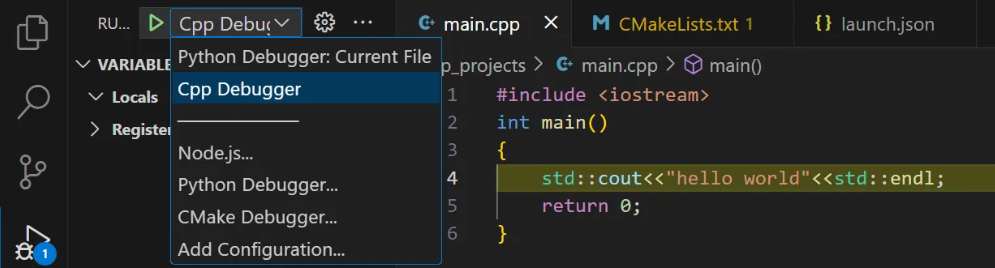

빌드 및 실행까지 진행이 된다.
728x90
반응형